SeedVR2 インストールガイド (バージョン 2.5) 🎉

ステップ 1: ComfyUI (ポータブル) Windows のダウンロード

Windows ダウンロード: ComfyUI_windows_portable_nvidia.7z

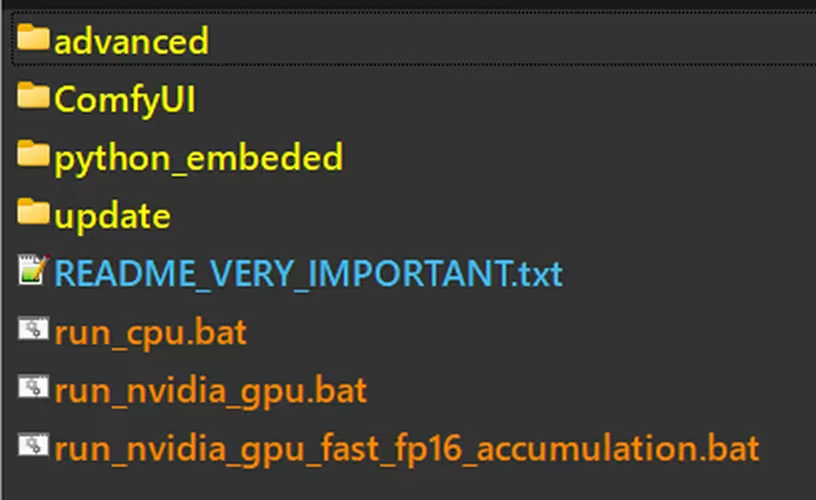
ダウンロード後、ファイルを解凍して圧縮パッケージを抽出します。


ステップ 2: ComfyUI-Manager のインストール

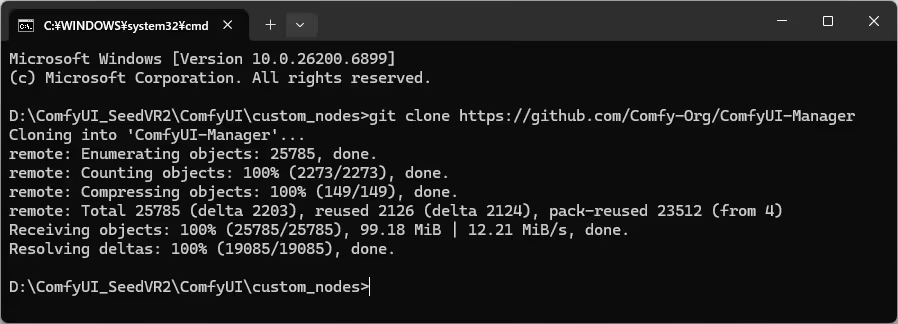
ComfyUI の custom_nodes フォルダに ComfyUI-Manager をダウンロードするために、以下のコマンドを使用します。
git clone https://github.com/Comfy-Org/ComfyUI-Manager


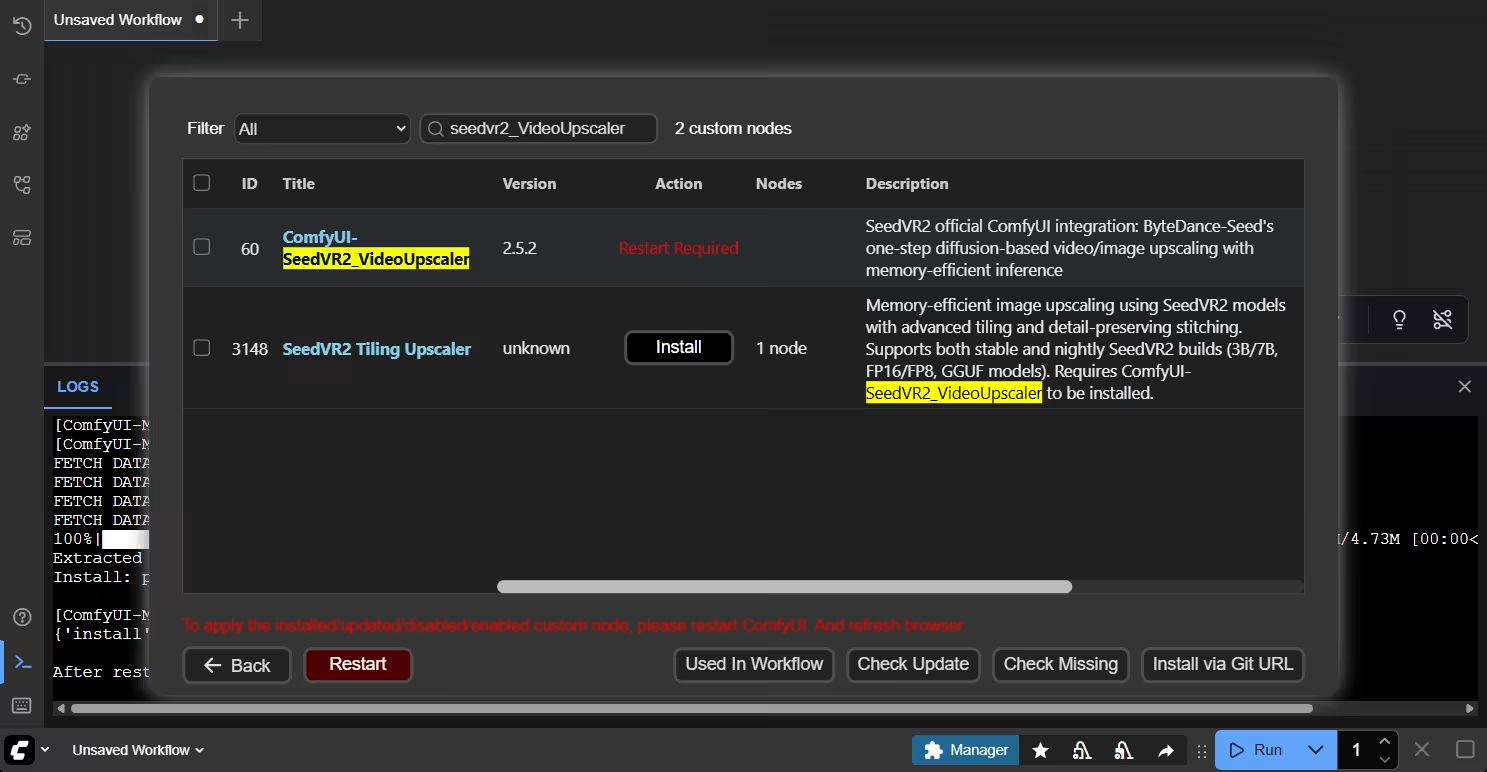
ステップ 3: SeedVR2 のインストール

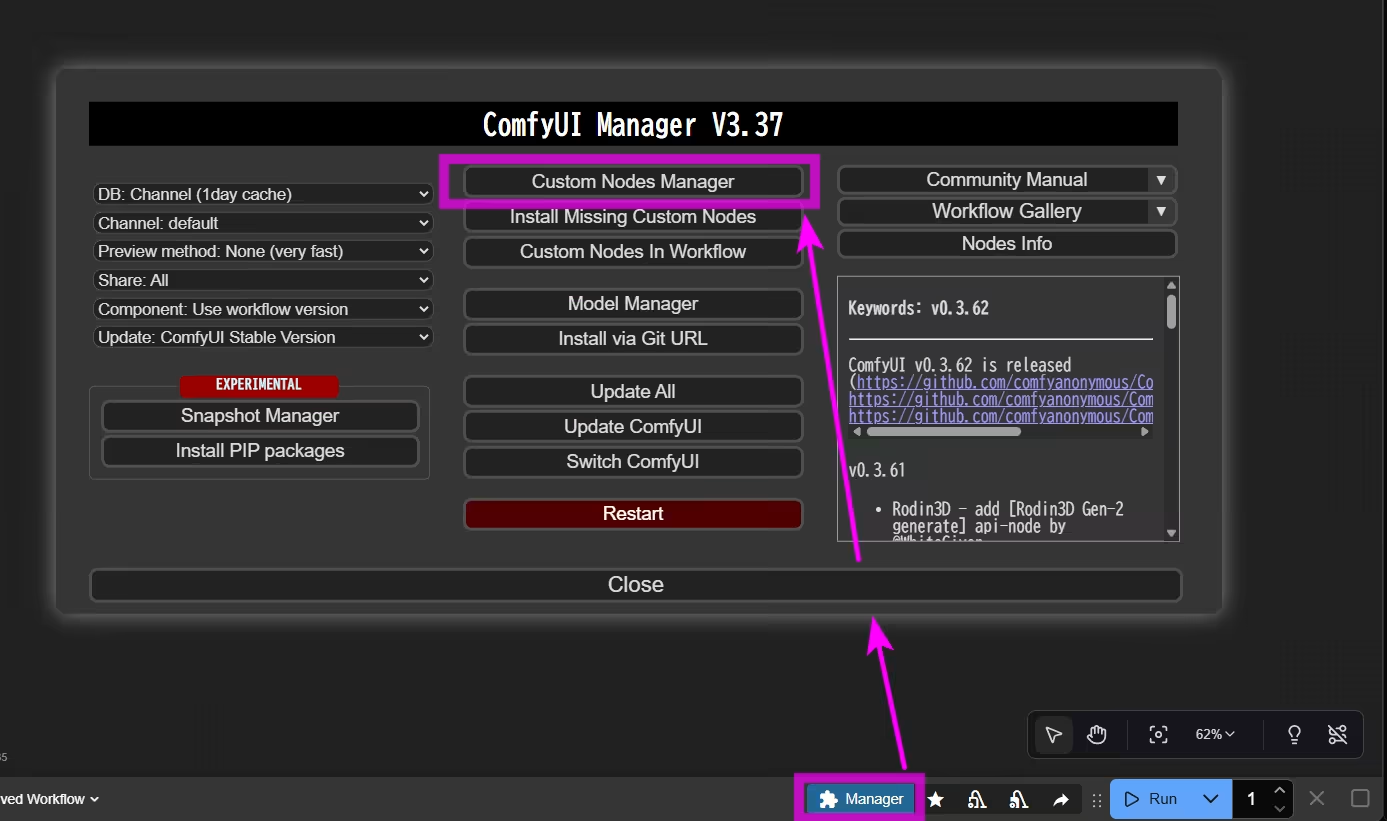
メニューに新しいボタン(設定によって上部または下部)が表示されます。
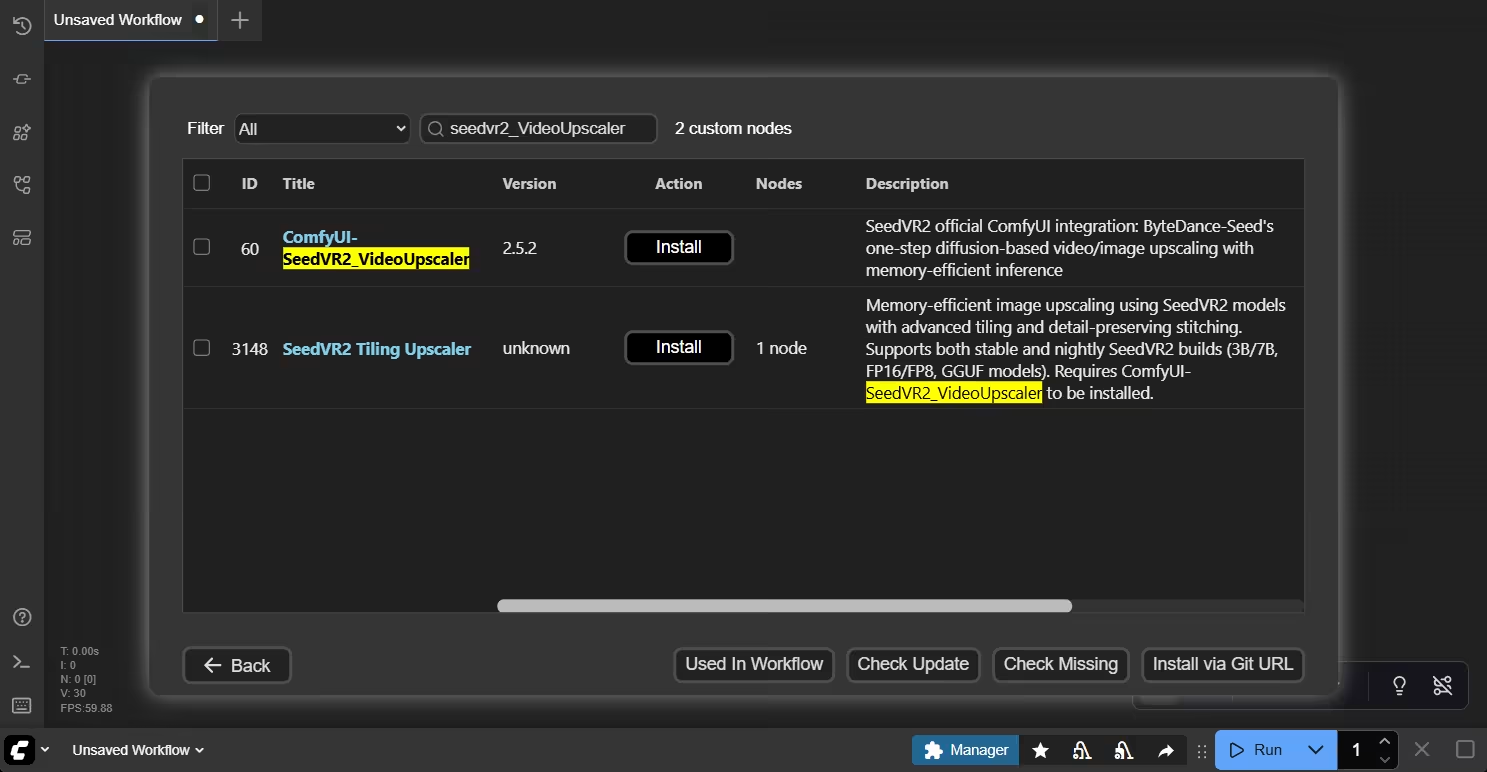
Custom Nodes Manager をクリックし、seedvr2 を検索します。

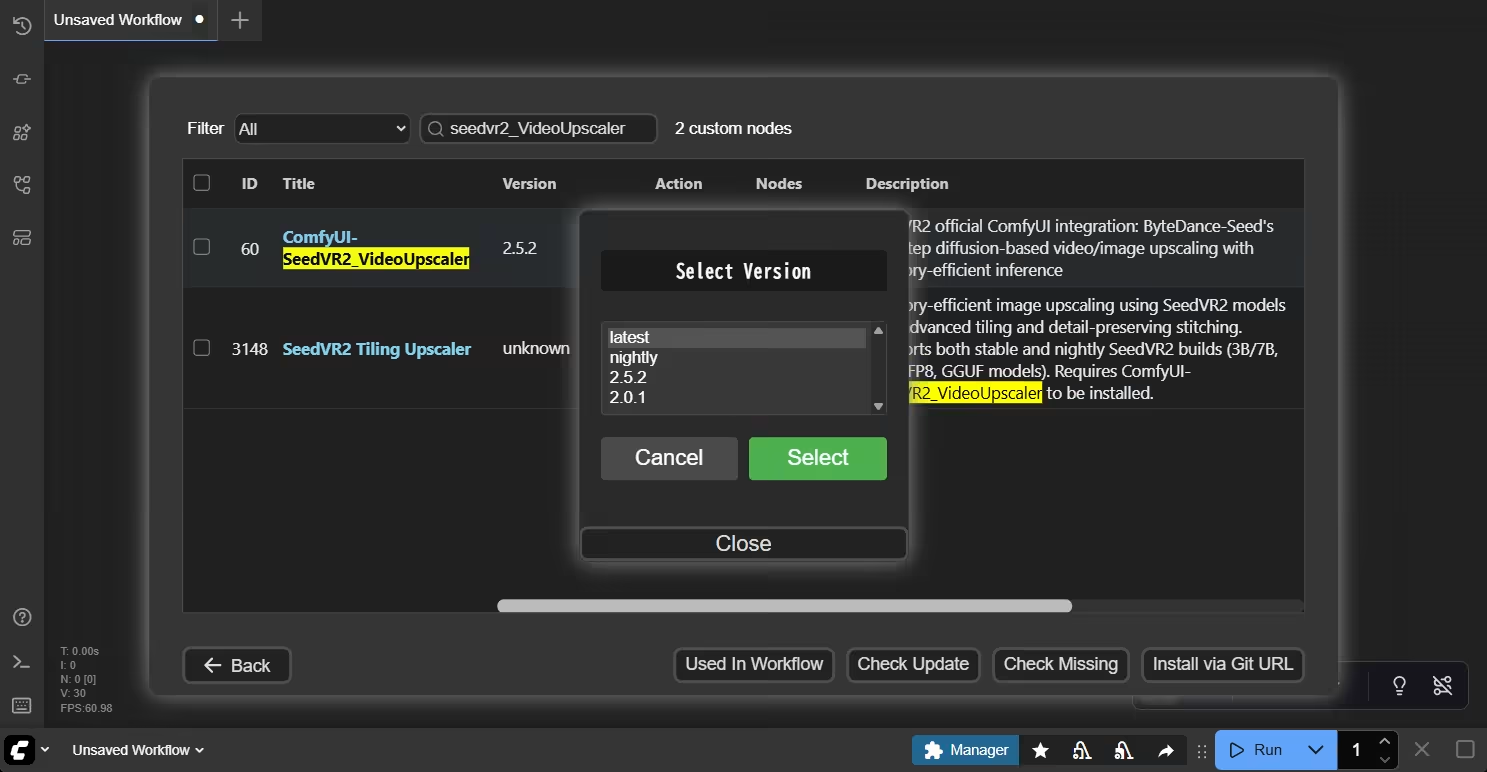
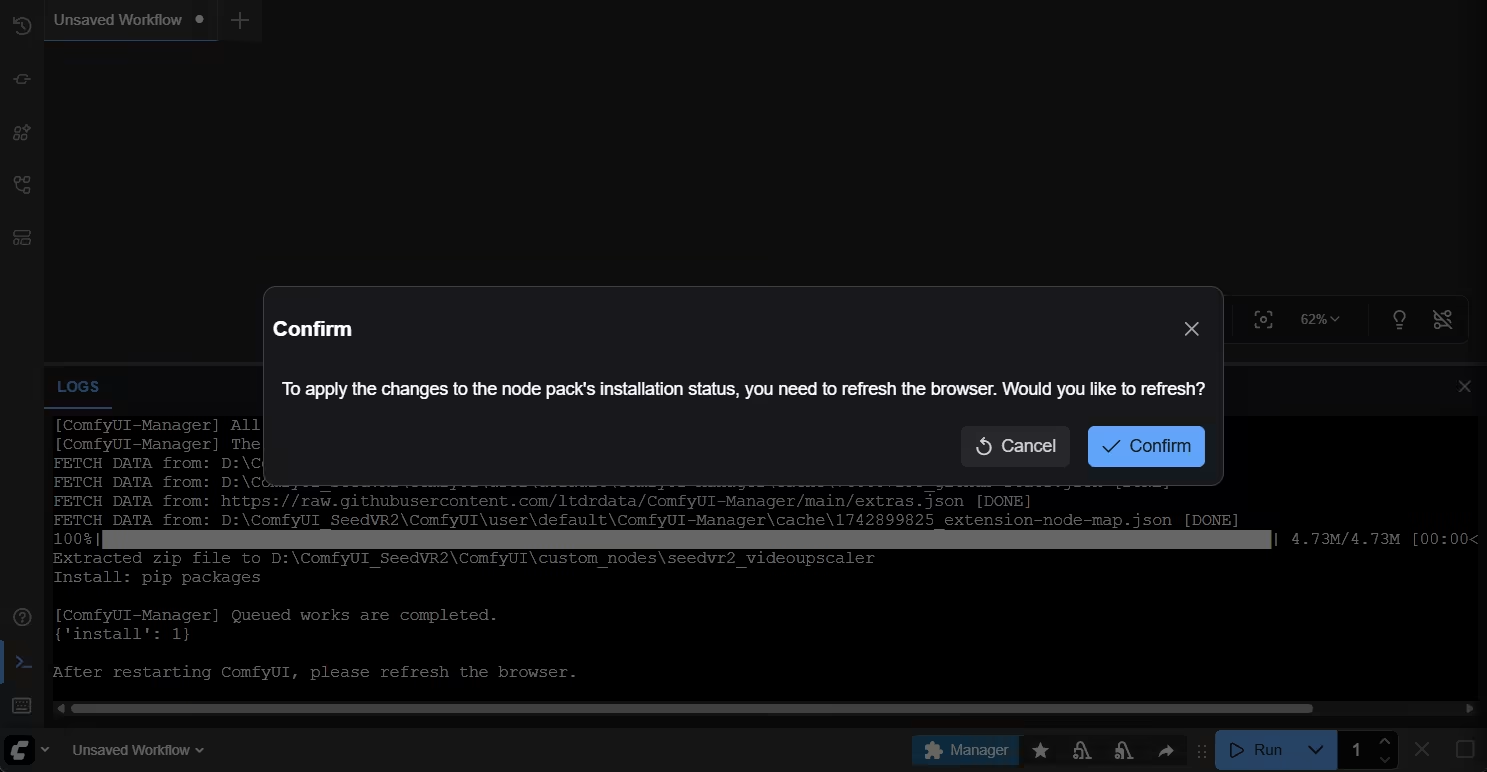
インストール後、サーバーを再起動するために Restart をクリックします。
再起動後、ブラウザを更新するために Confirm ボタンをクリックします。


ステップ 4: SeedVR2 のワークフローの作成

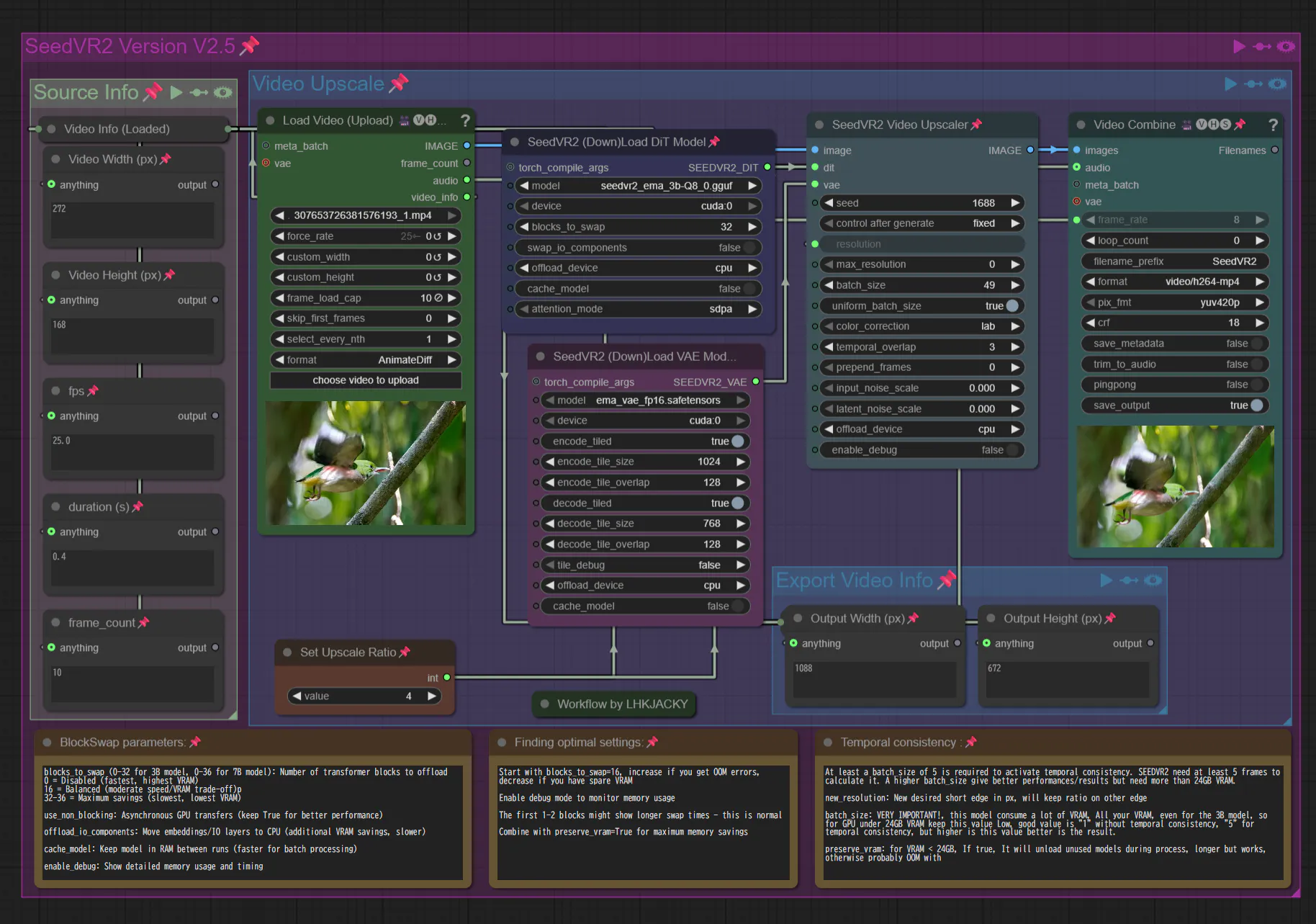
例のワークフローを JSON ファイルとしてダウンロードし、ComfyUI にドラッグアンドドロップするだけです。
SeedVR2 Version 2.5.0 の公式ワークフロー :tada:

画像のアップスケール:
SeedVR2_simple_image_upscale.json (9.3 KB)

SeedVR2_4K_image_upscale.json (9.3 KB)

Upscale Video:

SeedVR2_HD_video_upscale.json (10.7 KB)

ステップ 5: 画像/動画の読み込みとモデルの選択

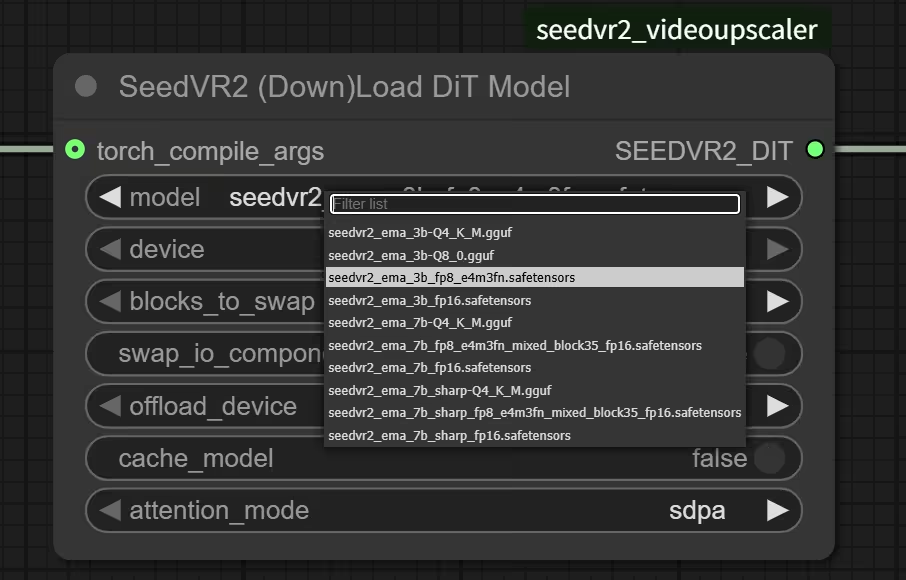
お好みのモデルを選択できます。
3b、7b、7b_sharp のいずれか。すべて fp8、fp16、Q4/8 gguf バージョンを備えています。
毎回簡単に済ませるために、3b はサイズの小さいモデルで、7b_sharp は 7b のシャープなバージョンです。動画アップスケールのデフォルトモデルは 3b_fp8 です。

ワークフローを初めて実行すると、モデルは自動的にダウンロードされます。

[15:12:39.137]
[15:12:39.138]   ╔══════════════════════════════════════════════════════════╗
[15:12:39.138]   ║ ███████ ███████ ███████ ██████  ██    ██ ██████  ███████ ║
[15:12:39.138]   ║ ██      ██      ██      ██   ██ ██    ██ ██   ██      ██ ║
[15:12:39.138]   ║ ███████ █████   █████   ██   ██ ██    ██ ██████  █████   ║
[15:12:39.138]   ║      ██ ██      ██      ██   ██  ██  ██  ██   ██ ██      ║
[15:12:39.138]   ║ ███████ ███████ ███████ ██████    ████   ██   ██ ███████ ║
[15:12:39.138]   ║                         © ByteDance Seed · NumZ · AInVFX ║
[15:12:39.138]   ╚══════════════════════════════════════════════════════════╝
[15:12:39.138]
[15:12:39.139] 📥 Downloading D:\ComfyUI_SeedVR2\ComfyUI\models\SEEDVR2\seedvr2_ema_3b-Q8_0.gguf from https://huggingface.co/AInVFX/SeedVR2_comfyUI/resolve/main/seedvr2_ema_3b-Q8_0.gguf...
seedvr2_ema_3b-Q8_0.gguf: 100%|████████████████████████| 3.41G/3.41G [00:56<00:00, 64.6MB/s]
[15:13:38.767] ✅ Downloaded and validated: seedvr2_ema_3b-Q8_0.gguf
[15:13:38.768] 📥 Downloading D:\ComfyUI_SeedVR2\ComfyUI\models\SEEDVR2\ema_vue_fp16.safetensors from https://huggingface.co/numz/SeedVR2_comfyUI/resolve/main/ema_vae_fp16.safetensors...
ema_vae_fp16.safetensors: 100%|██████████████████████████| 478M/478M [00:07<00:00, 64.9MB/s]
[15:13:47.133] ✅ Downloaded and validated: ema_vae_fp16.safetensors
[15:13:47.133] 🏃 Creating new runner: DiT=seedvr2_ema_3b-Q8_0.gguf, VAE=ema_vae_fp16.safetensors
[15:13:47.148] 🚀 Creating DiT model structure on meta device
[15:13:47.212] 🎨 Creating VAE model structure on meta device
[15:13:47.402]


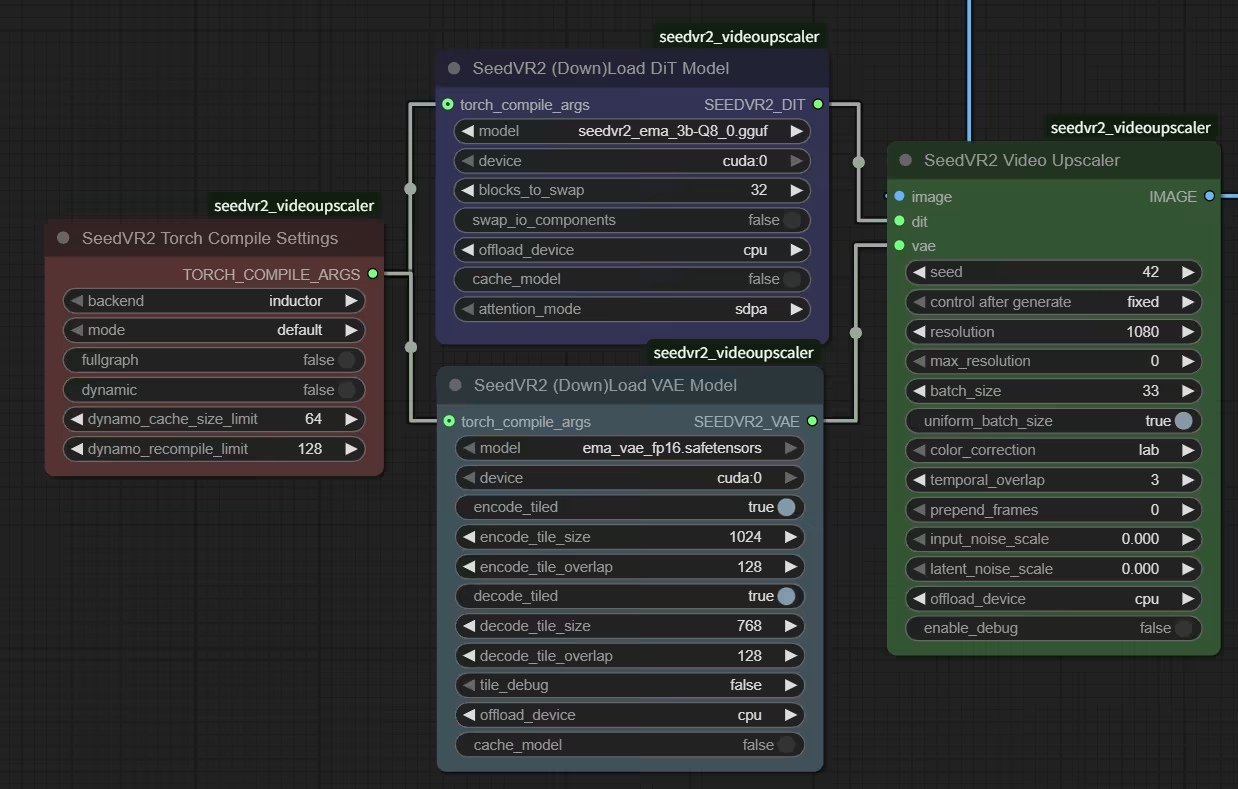
本日リリースされた新しい Version 2.5.0 :tada: は、以前のバージョンに比べて多くの変更を加えています。古いワークフロー は、修正なしでは現在のバージョンで動作しません。

ノードを 4 つのノードに分割しました。
(DiT モデル、VAE モデル、torch.compile 設定、およびメインのアップスケーラーによる細かな制御)


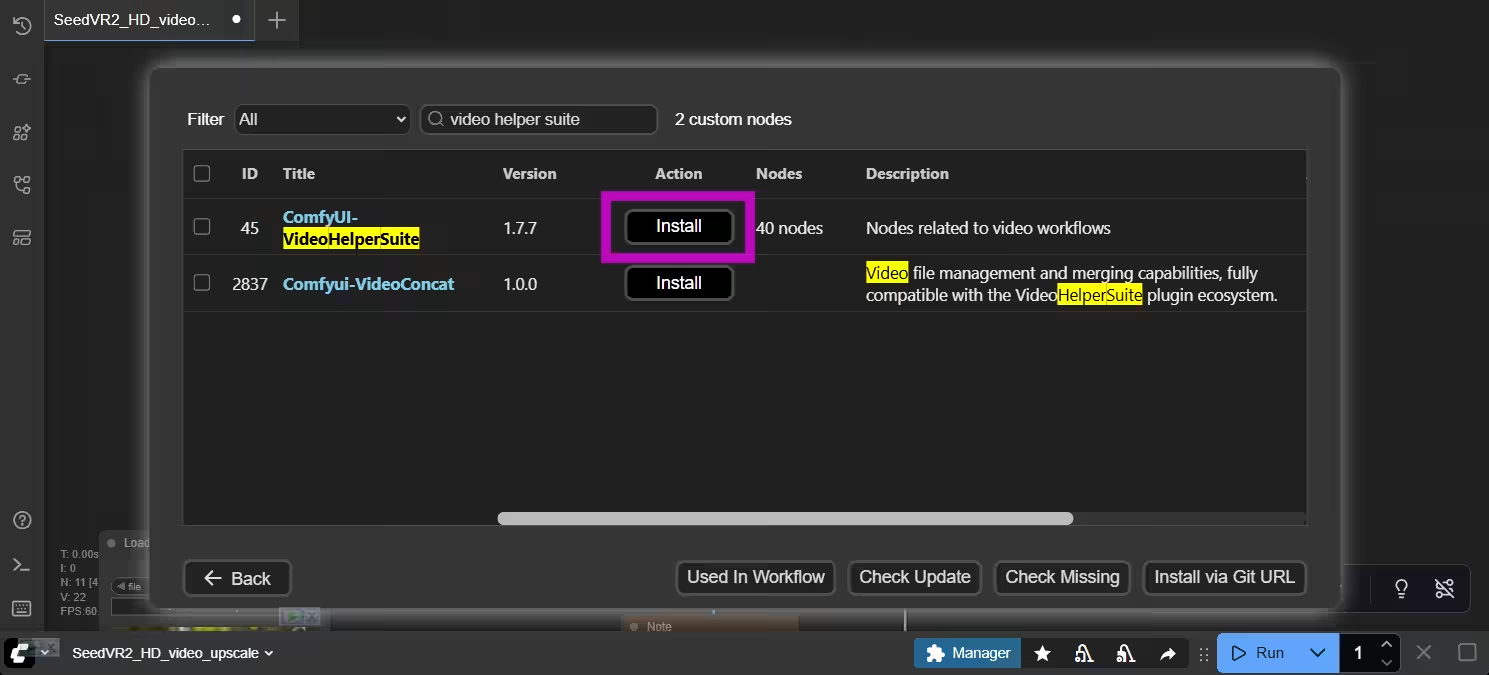
ステップ 6: ComfyUI-VideoHelperSuite のインストール(オプション)

ComfyUI Manager をすでにインストールしているので、ワンクリックで簡単にダウンロードできます。:partying_face:


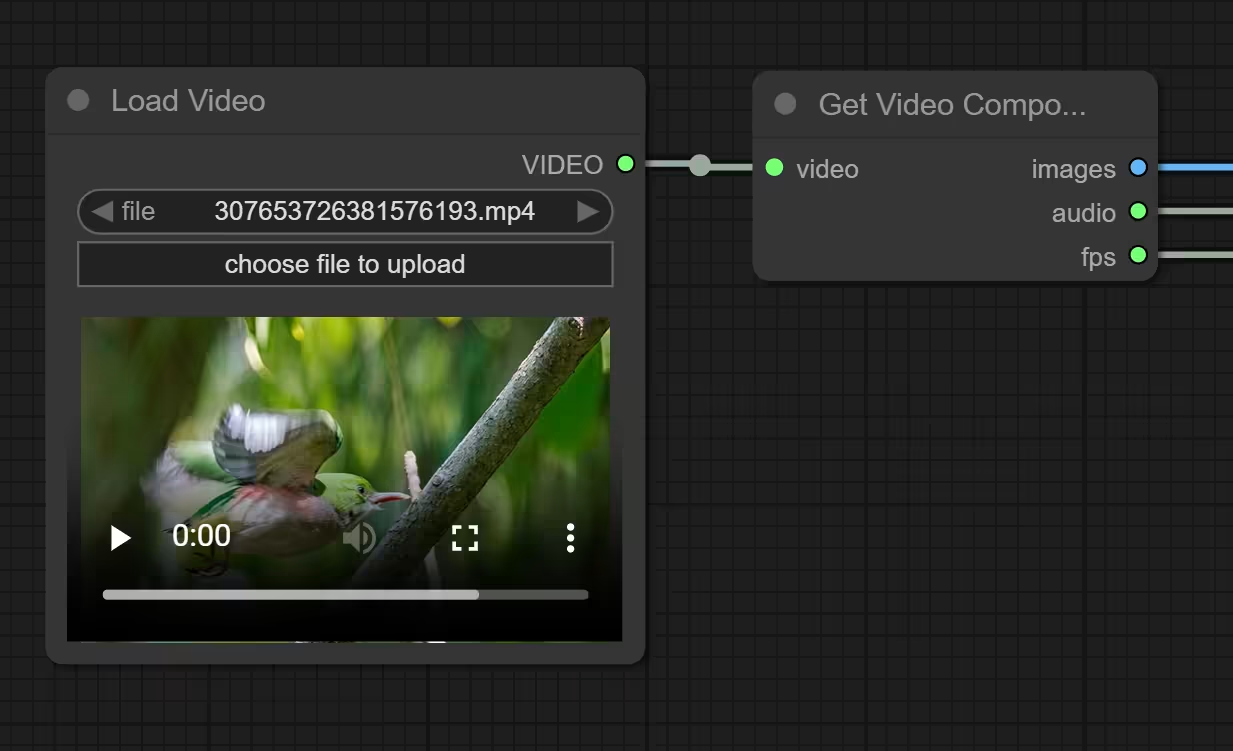
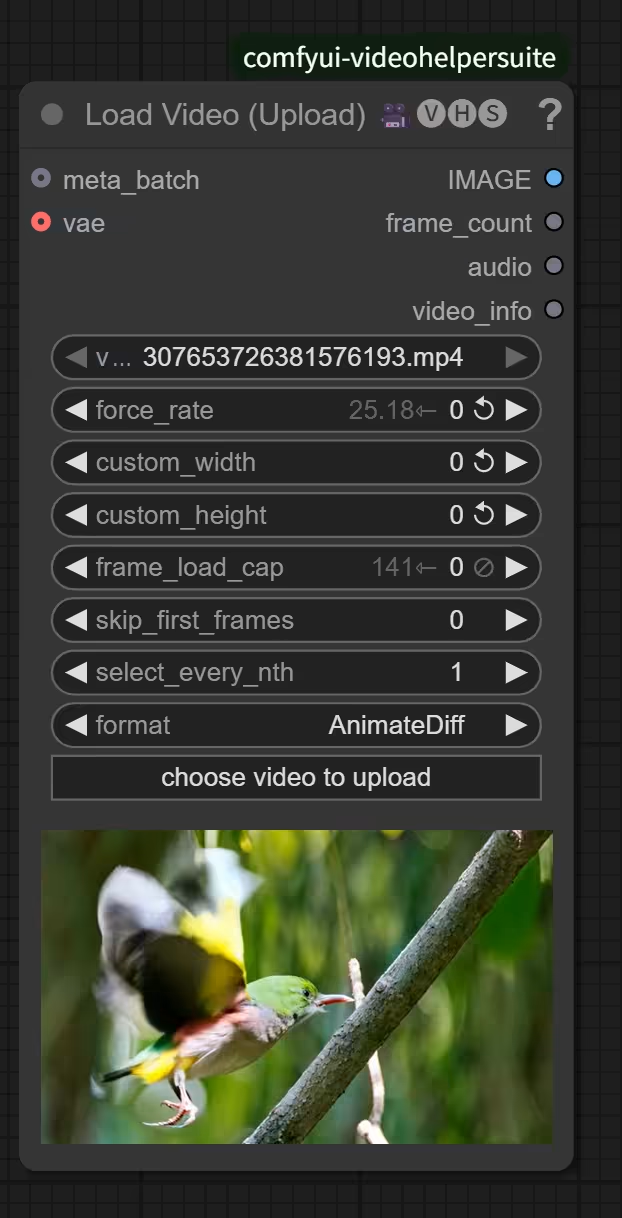
これで、Basic Load Video ノードを VideoHelperSuite の Load Video ノードに置き換えて、より多くの機能を利用できます。


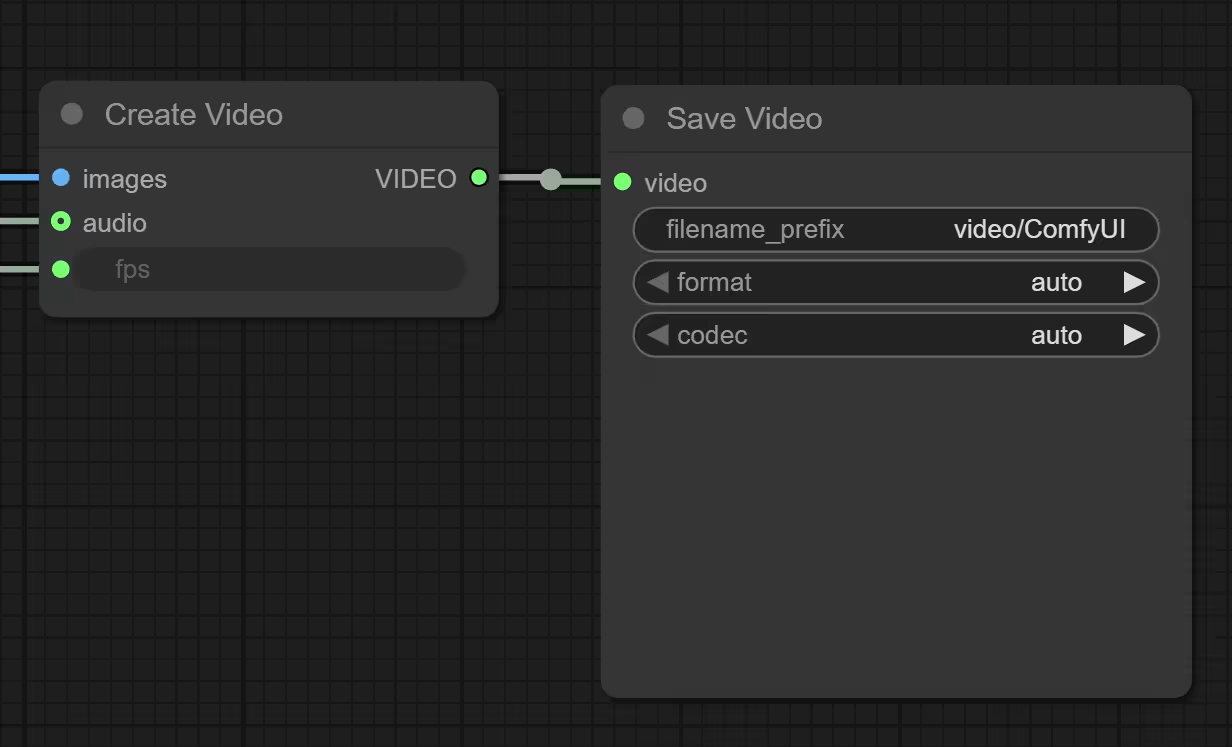
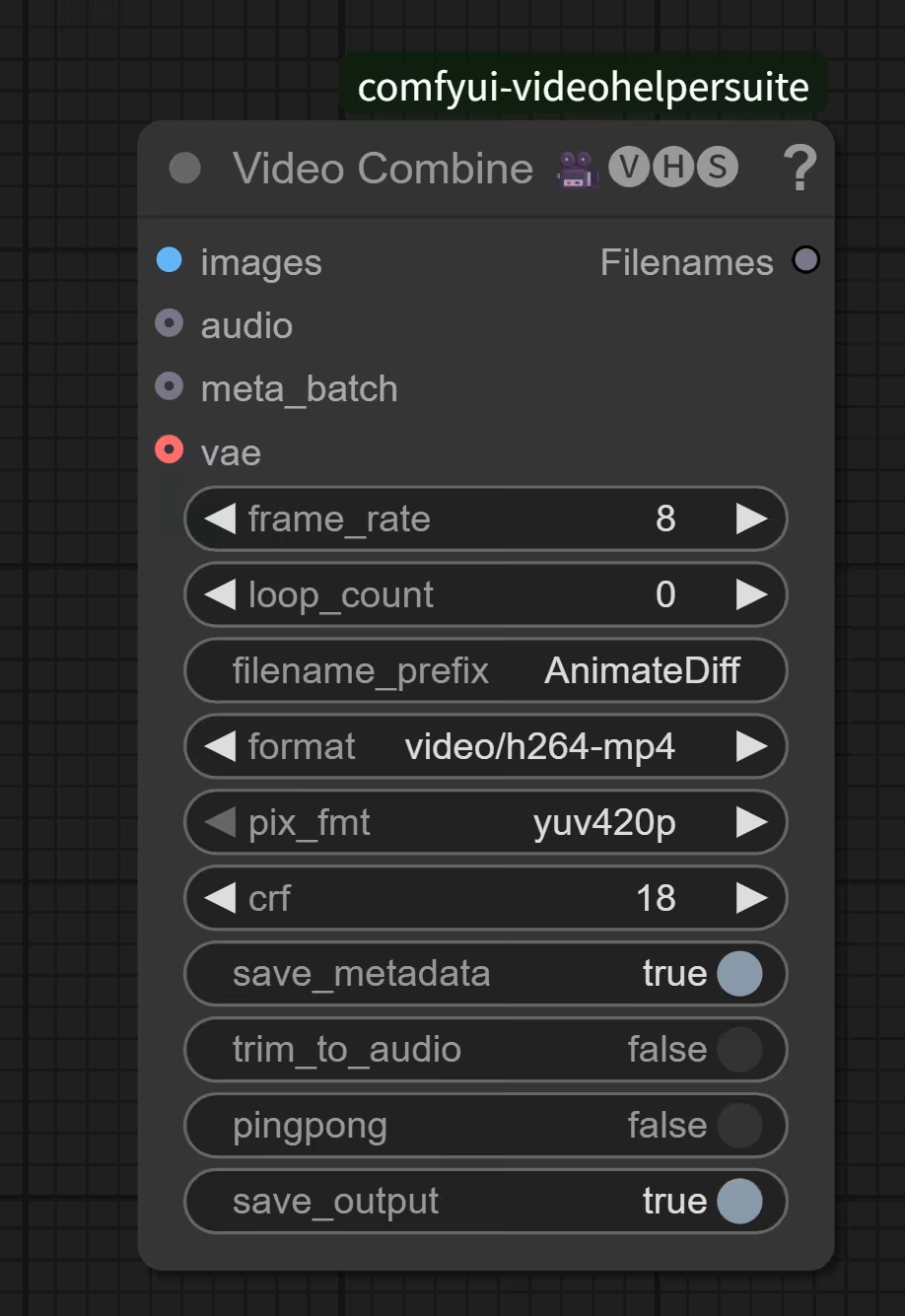
また、Basic Save Video ノードを VideoHelperSuite の Combine ノードに置き換えて、より多くの機能を利用できます。

ステップ 6: torch.compile の有効化(オプション)

新しい Version 2.5 では torch.compile がサポートされています:
公式の主張によると、フルグラフコンパイルで DiT の 20-40% 高速化と VAE の 15-25% 高速化が可能です。
ただし、inductor バックエンドを使用した torch.compile には Triton が必要です。
Triton がインストールされていない場合、警告が表示されます。

━━━━━━━━ Phase 1: VAE encoding ━━━━━━━━

[15:13:47.522] ❌ [ERROR] Cannot use torch.compile with 'inductor' backend: Triton is not installed.
Triton is required for the inductor backend which performs kernel fusion and optimization.
To fix this issue:
  1. Install Triton: pip install triton
  2. OR change backend to 'cudagraphs' (lightweight, no Triton needed)
  3. OR disable torch.compile
For more info: https://github.com/triton-lang/triton
[15:13:47.523] ⚠️ [WARNING] torch.compile failed for VAE submodules: torch.compile with inductor backend requires Triton. Install with: pip install triton
[15:13:47.523] ⚠️ [WARNING] Falling back to uncompiled VAE

Triton がインストールされていない場合、警告が表示されます。

━━━━━━━━ Phase 2: DiT upscaling ━━━━━━━━

[15:13:49.856] ❌ [ERROR] Cannot use torch.compile with 'inductor' backend: Triton is not installed.
Triton is required for the inductor backend which performs kernel fusion and optimization.
To fix this issue:
  1. Install Triton: pip install triton
  2. OR change backend to 'cudagraphs' (lightweight, no Triton needed)
  3. OR disable torch.compile
For more info: https://github.com/triton-lang/triton
[15:13:49.857] ⚠️ [WARNING] torch.compile failed for DiT: torch.compile with inductor backend requires Triton. Install with: pip install triton
[15:13:49.857] ⚠️ [WARNING] Falling back to uncompiled model

ステップ 7: Triton のインストール(オプション)

最新の ComfyUI Portable を使用している場合

Python version: 3.13.9
ComfyUI version: 0.3.68
ComfyUI frontend version: 1.28.8

ComfyUI Portable フォルダ内で CMD を使用して、以下のコマンドで Triton をインストールできます。

python_embeded\python.exe -m pip install -U "triton-windows<3.6"
D:\ComfyUI_SeedVR2>python_embeded\python.exe -m pip install -U "triton-windows<3.6"
Collecting triton-windows<3.6
  Downloading triton_windows-3.5.0.post21-cp313-cp313-win_amd64.whl.metadata (1.8 kB)
Downloading triton_windows-3.5.0.post21-cp313-cp313-win_amd64.whl (47.3 MB)
   ━━━━━━━━━━━━━━━━━━━━━━━━━━━━━━━━━━━━━━━━ 47.3/47.3 MB 14.4 MB/s 0:00:03
Installing collected packages: triton-windows
Successfully installed triton-windows-3.5.0.post21

インストール後、ComfyUI を再起動すると、Triton :white_check_mark: が表示されます。

⚠️ SeedVR2 optimizations check: Flash Attention ❌ | Triton ✅
💡 Install Flash Attention for faster inference: pip install flash-attn
🔧 Conv3d workaround active: PyTorch 2.9.0, cuDNN 91200 (fixing VAE 3x memory bug)
📊 Initial CUDA memory: 10.83GB free / 11.99GB total

注意:

ComfyUI Portable の埋め込み Python には必要なすべてのファイルが含まれていないため、torch.compile を有効にするとファイルが見つからないエラーが発生する可能性があります。

cuda_utils.c:14: error: include file 'Python.h' not found

修正:

python.org から Python 3.13 64-bit をダウンロードしてインストールします。
インストール後、C:\Users\your_name\AppData\Local\Programs\Python\Python313\include\ フォルダ内のすべてのファイルを D:\ComfyUI\python_embeded\include にコピーします。

Step 8: Install Flash Attention (Optional)

This repository was created to address a common pain point for AI enthusiasts and developers on the Windows platform: building complex Python packages from source. Libraries like flash-attention, xformers are essential for high-performance AI tasks but often lack official pre-built wheels for Windows, forcing users into a complicated and error-prone compilation process.

The goal here is to provide a centralized, up-to-date collection of direct links to pre-compiled .whl files for these libraries, primarily for the ComfyUI community and other PyTorch users on Windows. This saves you time and lets you focus on what’s important: creating amazing things with AI.

Pick one that match your CUDA, Python, and Torch Version

For example:

Matches cu128 (CUDA 12.8), cp312 (Python 3.12), and base Torch 2.7.x.
https://huggingface.co/lldacing/flash-attention-windows-wheel/resolve/main/flash_attn-2.7.4.post1+cu128torch2.7.0cxx11abiFALSE-cp312-cp312-win_amd64.whl

Matches cu128 (CUDA 12.8), cp312 (Python 3.12), and base Torch 2.9.x.

https://huggingface.co/Wildminder/AI-windows-whl/resolve/main/flash_attn-2.8.3+cu128torch2.9.0cxx11abiFALSE-cp312-cp312-win_amd64.whl

python_embeded\python.exe -m pip install xxxxxxx.whl

Verify:
python_embeded\python.exe -c "import flash_attn; print('Ready:', flash_attn.__version__)"


Simple Workflow without Triton.