Topaz Gigapixel features nine specialized AI models for image upscaling, each optimized for different types of images and scenarios. These include core non-generative models for general enhancements (processed locally) and advanced generative options like Redefine BETA for creative or low-quality restorations. Below, I describe each model based on official details, incorporating expanded insights on functionality, workflows, and best practices. All models support lossless enlargement up to 6x while enhancing details, sharpness, and clarity. Additional features like Pre-downscaling and multi-pass workflows optimize results for challenging inputs.
 Wonder Model (Upscale)
This new one-click AI model combines upscaling, sharpening, and denoising in a single process, recovering images previously considered unrecoverable without manual settings or adjustments. It’s perfect for photos with extremely low resolution, small faces, heavy noise, or blurred backgrounds, producing clean, natural results with fewer artifacts and less oversharpening. Especially effective on old images, social media snaps, or pixelated files, it balances sharpness and realism for a true upscale rather than artificial interpretation. Potential limitations include smoothing fine textures or struggling with dark areas—ideal for quick, automated enhancements on low-quality sources like heavily compressed or pixelated files.

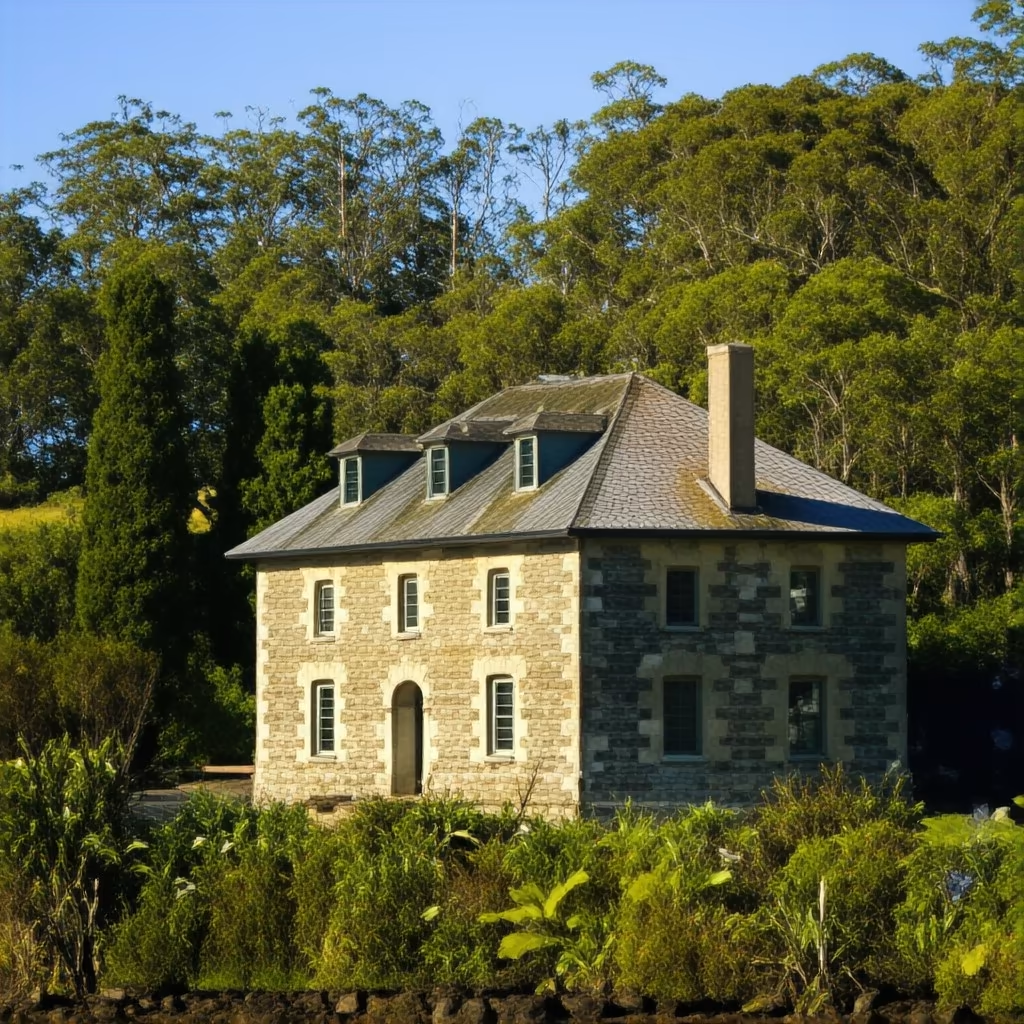
Standard MAX Model (Upscale)
A new series model for precise, true-to-input image restoration, dubbed the “new standard” for upscaling. It delivers higher quality, more natural, and more detailed results, 100x faster than first-generation diffusion models. Built for speed and efficiency, it works on a wide range of images using fewer system resources, acting as a hybrid between Standard v2 and Recover v2. It offers a quick, simple workflow with a Strength slider for natural blending, making it suitable for efficient, high-fidelity processing without sacrificing realism.
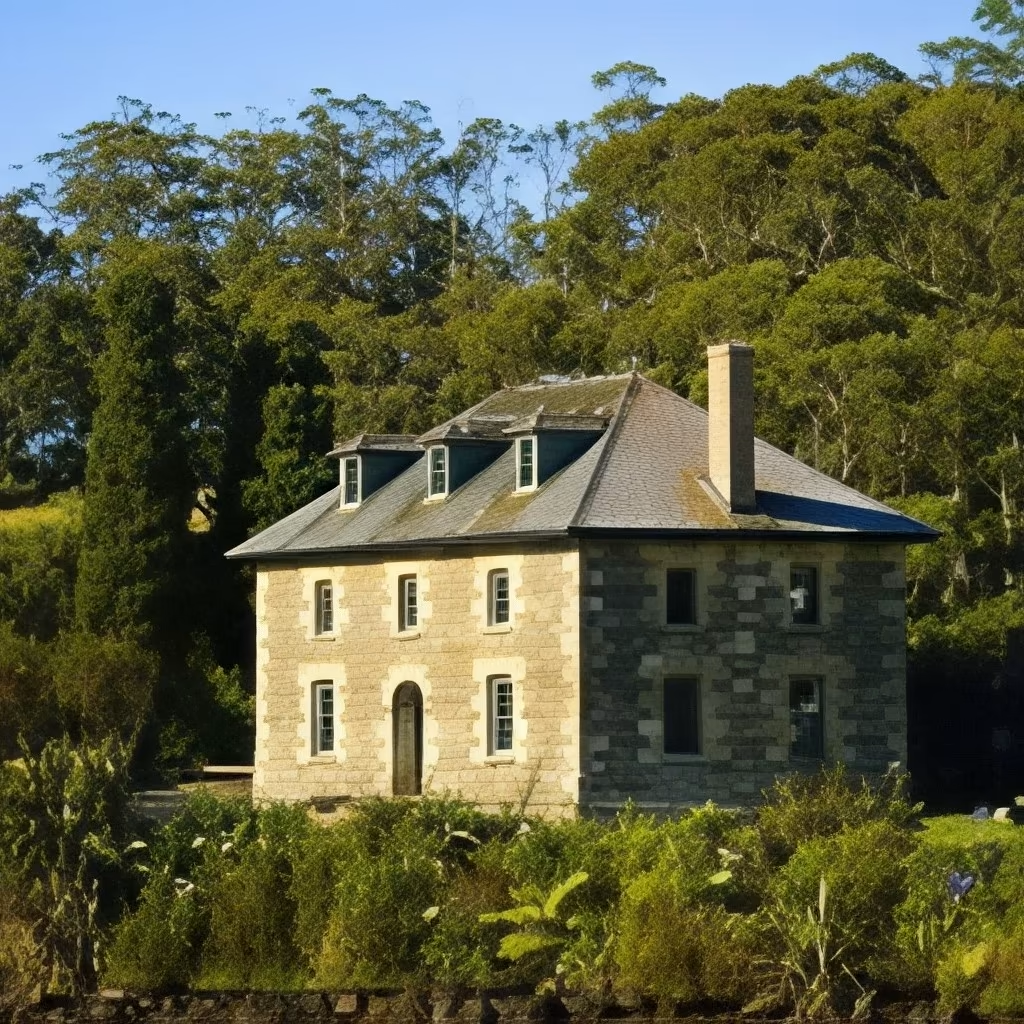
Standard Model
A balanced, versatile core model (non-generative) recommended for most everyday photos, graphics, and generated images. Standard v2 (the default) improves detail and sharpness while avoiding over-processing for natural-looking results, preserving textures and maintaining sharpness. It’s a safe first choice for general upscaling, such as enhancing standard digital photos or casual snapshots without artifacts. To retain grain or noise, lower Denoise and Fix Compression values for more authentic outputs.
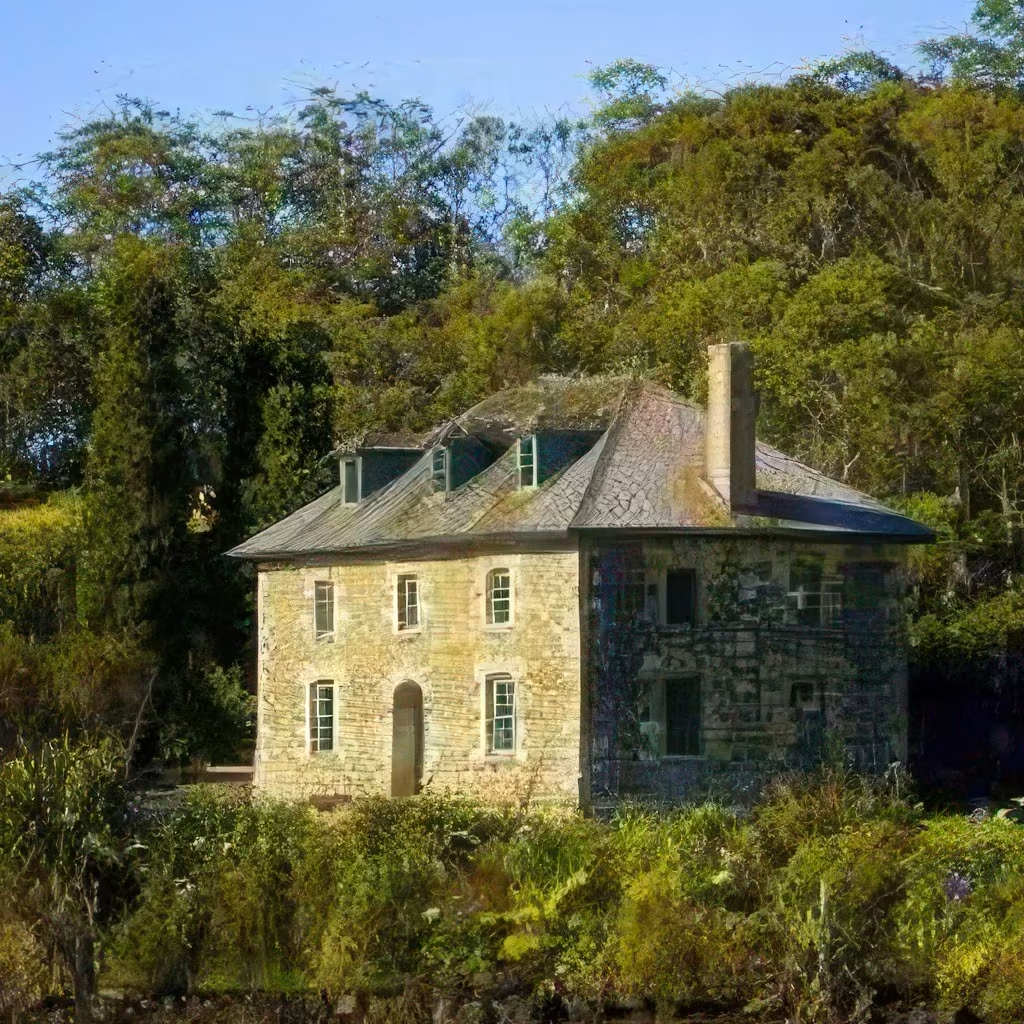
High Fidelity
A core model trained on high-quality, high-resolution images from top-end cameras. It maintains the original look without distortions, preserving textures and authentic capture details—use the Denoise slider for minimal changes. Standard v2 integration addresses natural textures while keeping sharpness, though processing is slower for superior output. Best for professional workflows with large, clean files like high-res prints or graphics where fidelity is key; lower Denoise/Fix Compression to keep grain/noise natural.
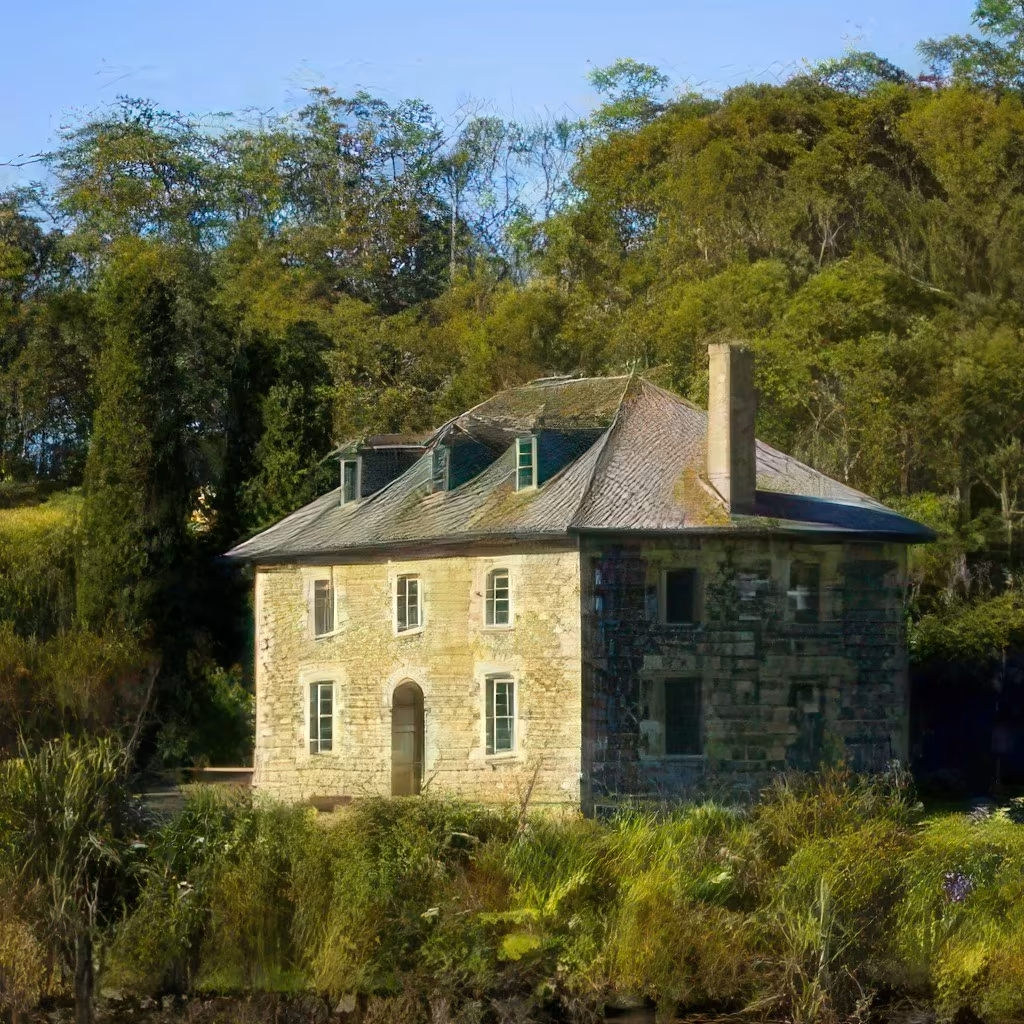
Low Res
Optimized for small or low-resolution files, this core model (with v2 and v1 variants) adds clarity and recovers visible details in heavily compressed, web-sourced, or low-res scanned images. Low Res v2 works best with tiny inputs; v1 removes more blur by default. It shines in scenarios like thumbnails, surveillance footage, or web JPEGs, transforming blurred/undersized sources into sharp outputs without excessive noise.
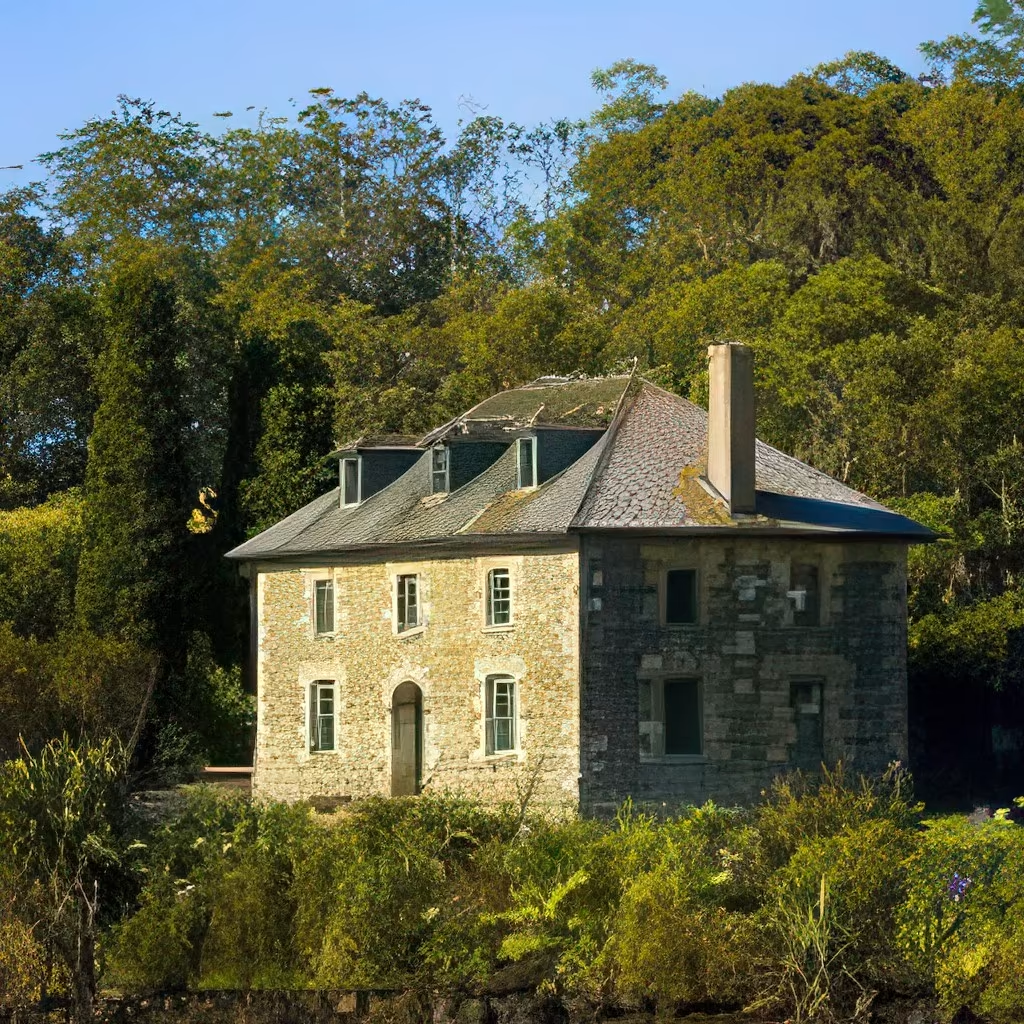
Text & Shapes
A core model tuned for distinct patterns in man-made objects, textures, written words, and fonts. It sharpens text, lines, and geometric shapes while minimizing blur or pixelation, supporting auto or brush modes for cleanup like dust/scratch removal in old/scanned images. Ideal for graphic design, typography, street signs, architectural text, or automotive details where crisp edges and readability are essential.
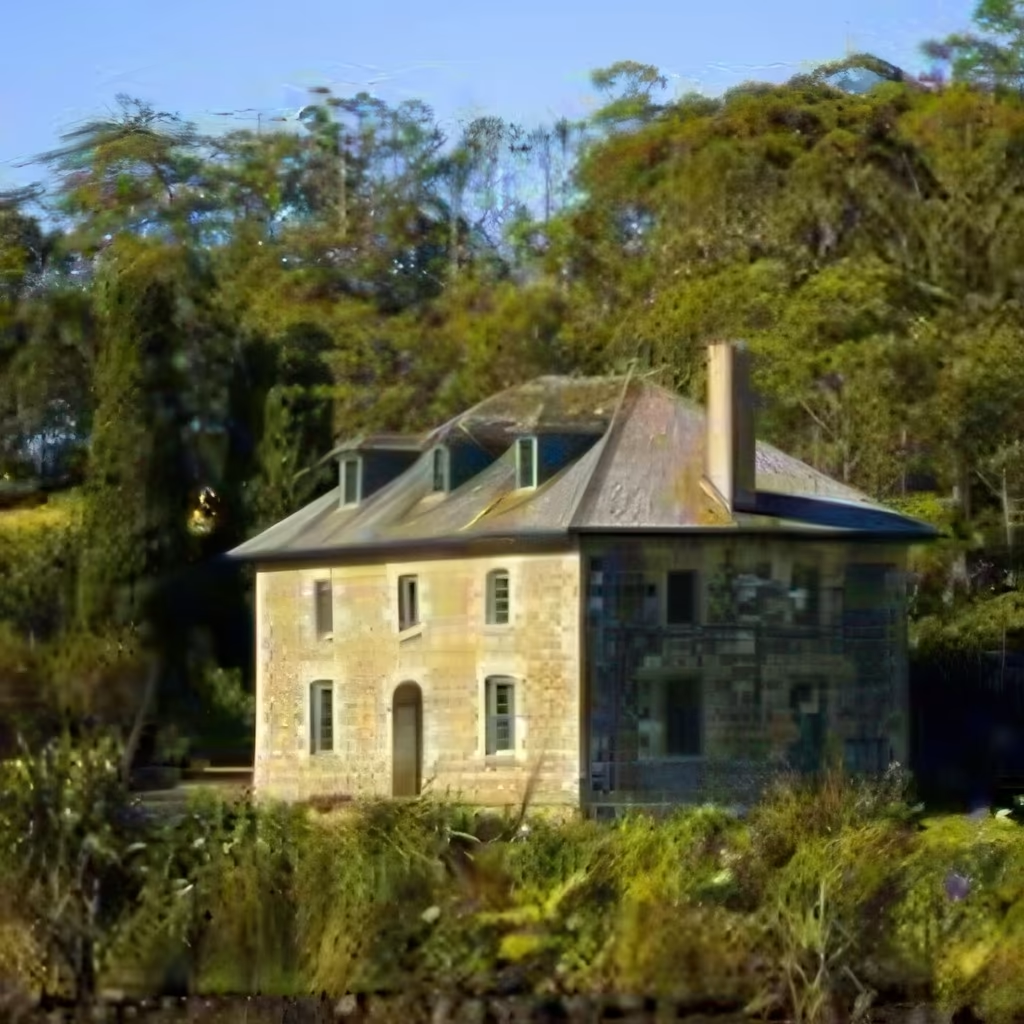
Art & CG
A core model built for non-photographic content like digital artwork, drawings, illustrations, and computer-generated (CG) images. It enhances sharpness and edges while respecting stylized or artificial structures, avoiding softening from photo models. Perfect for artists, animators, or designers upscaling vector-like or rendered visuals for prints, web, or presentations.
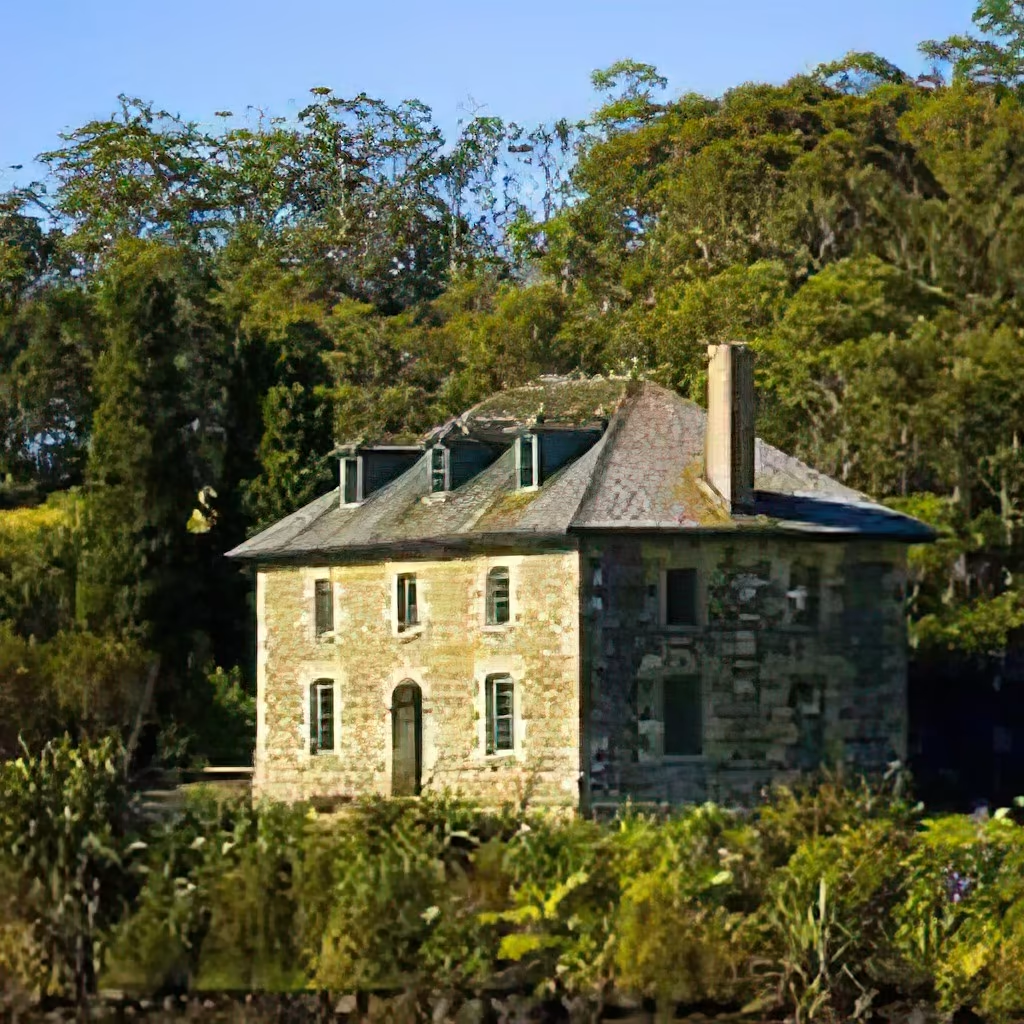
Recover
This model focuses on restoring lost details from low-resolution or degraded sources, useful for damaged, old, or out-of-focus photos. Recover v2 (optimized for speed, faster than v1) brings the best upscaling fidelity for old/low-quality photos under 1MP. It intelligently reconstructs missing elements like textures or contours. Great for archival restoration, family heirlooms, or forensic recovery—pair with Pre-downscaling for larger inputs.
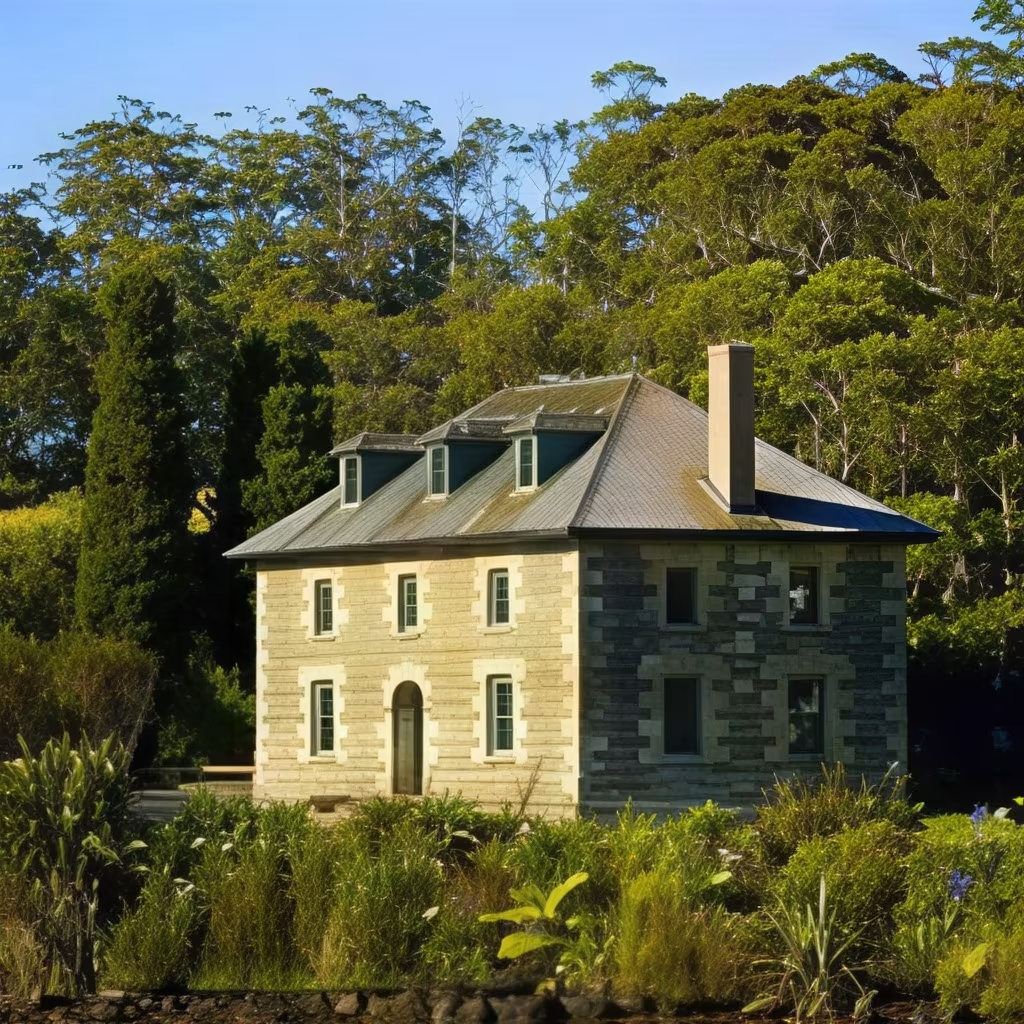
Redefine BETA
A generative model for low-quality or AI-generated images, adding definition and detail. Prioritize realistic fidelity (None or Subtle levels; use Image Description for direction, e.g., “girl with red hair and blue eyes” vs. directives) or creative distinction (Low/Medium/High/Max levels; adjust Texture slider for detail). Face Recovery is disabled in Creative mode for optimal results. Cloud rendering recommended for >1MP images. Previews vary by scale (use thumbnail controls or full preview); results differ from full renders due to generative nature. Check community tips for Image Descriptions.
Face Recovery
Specialized for portraits, this enhances facial features, restores natural skin textures, and corrects distortions like asymmetry or softness, ensuring subjects look authentic. It’s disabled in Redefine Creative mode to prioritize model results. Essential for headshots, event photos, or historical portraits—combine with other models for full-image upscales.
Additional Features and Workflows
Pre-Downscaling
An intelligent action to improve handling of larger images (>1000px sides) with false resolution (high pixels but low detail density, e.g., old JPEGs, scans, or poor upscales). It resamples to concentrate density, then AI-upscales for natural results. Choose three intensity levels or None; triggered by the “Large image warning” for Cloud rendering. Ideal for optimizing input before enhancement.
Multi-Pass Workflow for Generative Models
For higher resolution from small generative inputs (e.g., Redefine/Wonder):
- Resize source to ≤1024×1024 (or use Pre-downscaling with Recover v2).
- Upscale 1-4x with generative model (local if capable; Cloud otherwise); export as new file.
- Import result into Gigapixel; use core model (e.g., Auto mode) for further upscaling.
This workflow leverages generative strengths on small files while scaling safely on your system.
These models and features make Topaz Gigapixel versatile for pros and hobbyists—start with core models for reliability, generative for creativity, and workflows for scale.